

New 2026-10-17: Messages has been live in the product since September 2026 but wasn’t documented until now.
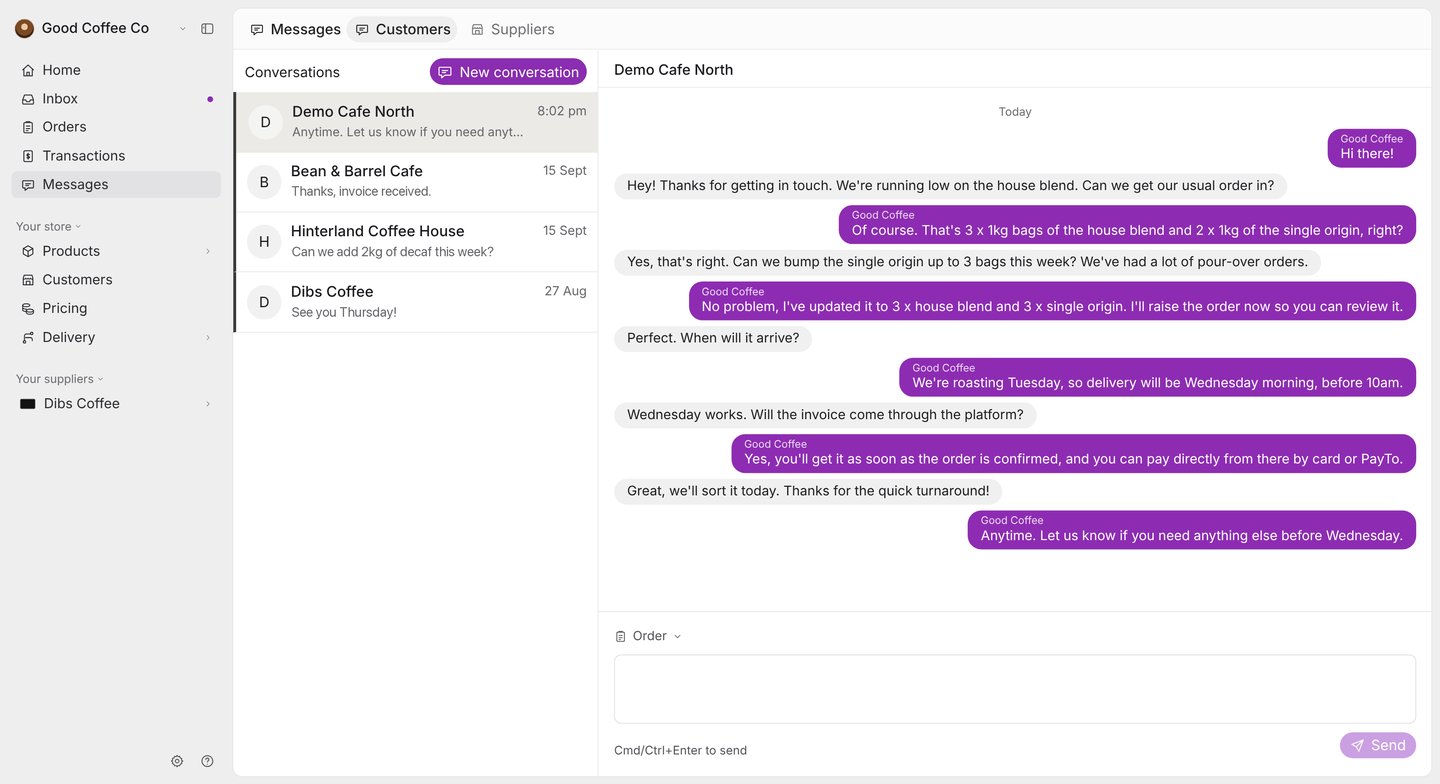
How conversations work
- There’s one conversation per customer. Every message you or your teammates send to that customer goes into the same thread, and anyone on your team can read and reply.
- Your customer sees the same conversation from their storefront — see Message your supplier.
- Messages are plain text. You can’t attach files or images.
- A message can carry one order for context, shown as Order: #1234 under the message.
Before you begin
Any member of your team can use Messages. You can only message active customers who are on FikaTrade themselves. A customer that exists only as a record in your workspace, with nobody signed in to order for them, doesn’t appear in the customer picker.Start a conversation
You can start a conversation from three places:- Messages in the sidebar → New conversation, then choose the customer.
- A customer’s page → Message customer.
- An order’s page → the Message button in the toolbar. This opens that customer’s conversation with the order already attached to your draft.
Send a message
- Type your message in the box at the bottom of the conversation. Enter starts a new line.
- Optionally, select Order to attach one of that customer’s orders. The picker shows their 10 most recent orders, and you can search for any other. Select Remove order to take it off again.
- Select Send, or press Cmd+Enter (Mac) or Ctrl+Enter (Windows).