

New 2026-10-17: this page replaces the earlier note that the import tool existed but wasn’t documented.
Before you begin
You need to be a supplier administrator to use Imports.Choose an importer
Go to Settings → Imports. The top of the page lists the importers available to you, in two columns: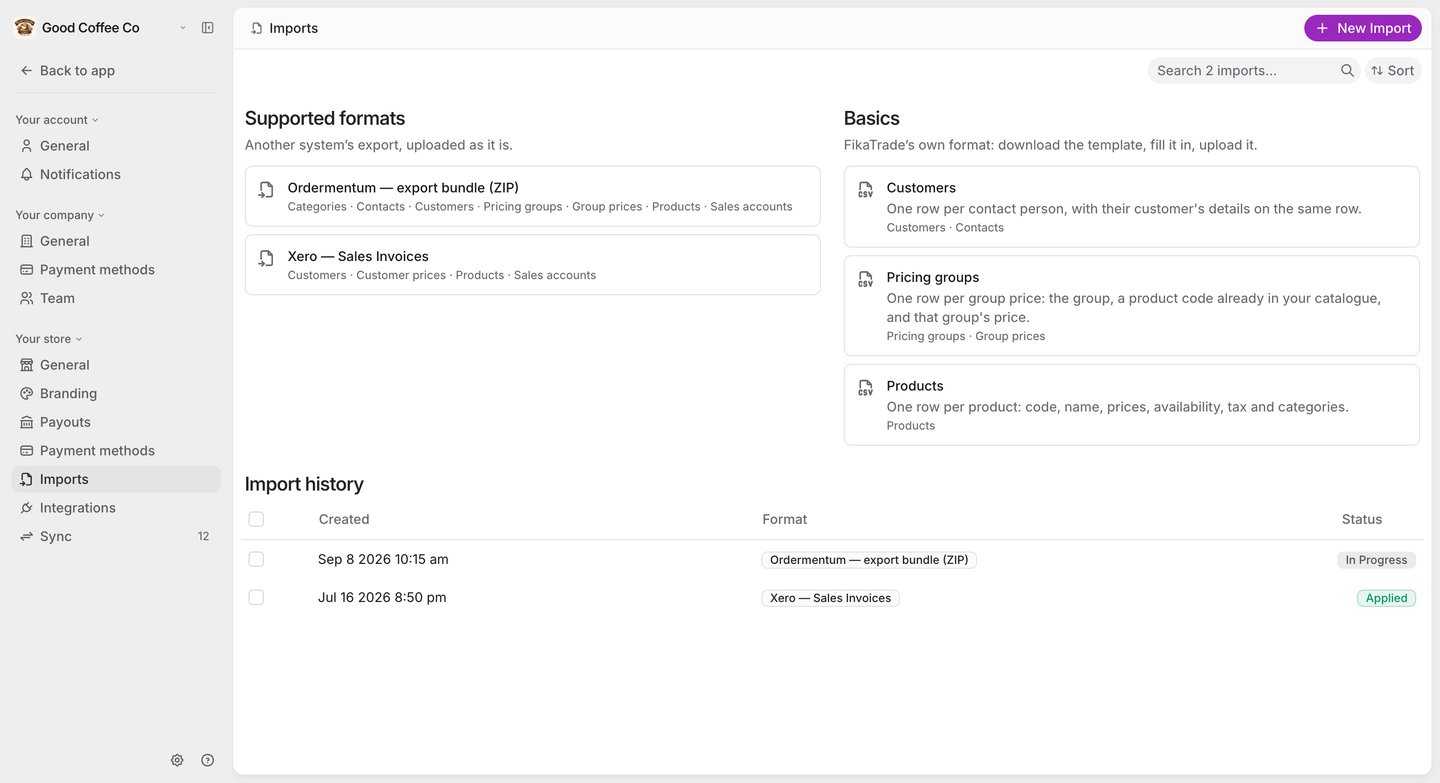
Below the importers, Import history lists every file you’ve uploaded, with its status.
Fill in a template (Basics)
Open the basic you want, select Template, and replace its example rows with your own. The importer page lists every column it reads, with required ones marked.
A few rules apply to every basic:
- Keep codes stable. The customer code and product code are how FikaTrade recognises the same record across uploads.
- Prices must be a number of zero or more. A row with any other price is skipped, and the import tells you which row.
- Tax code and sales account only apply when the import creates a product — an existing product keeps its own. A sales account code must be one you already have under Sales accounts.
- A customer whose
pricing_groupyou don’t have yet stays on default pricing. A contact without an email is skipped, but their customer is still imported.
Upload a file
- Select Upload file on an importer’s page, or New Import on the Imports page.
- FikaTrade stores the file and opens its import page. Nothing is processed yet.
- Under Read this file as, FikaTrade lists the importers whose columns match your file. Choose the right one.
- Decide whether to tick Manual review, then select Start onboarding:
- Manual review off (the default): rows FikaTrade can place without any doubt — for example a brand-new record, or one that exactly matches what you already have — are added for you. Everything else waits for you.
- Manual review on: nothing is added or linked on its own. Every row waits for your decision.
Review the rows
Once the file has been read, its import page lists every record it found, grouped into tabs by type — for example Sales accounts, Pricing groups, Products, Customers and Contacts. Each row tells you what it’s asking: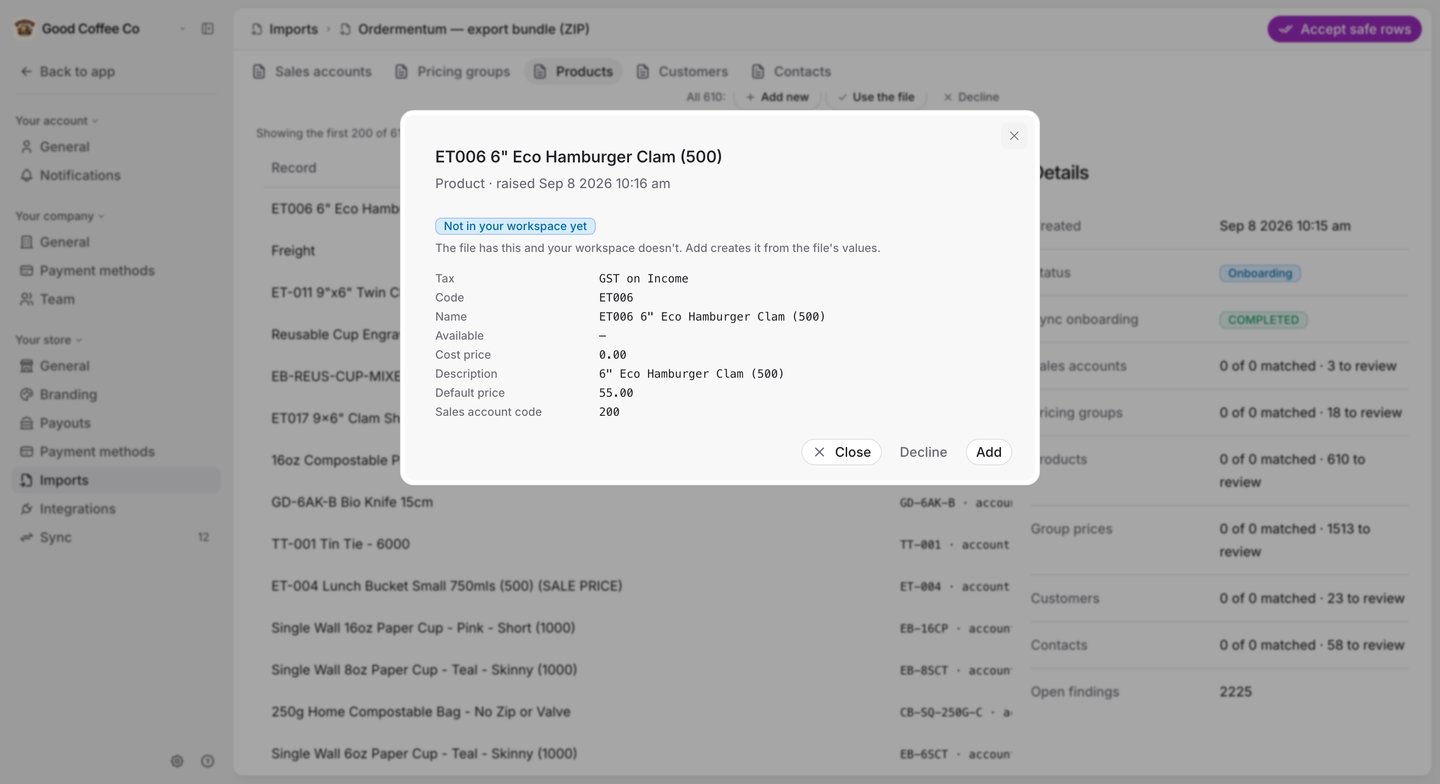
If you keep your own value where it differs from the file, FikaTrade remembers that, so the same difference isn’t raised again next time.
Answer many rows at once
- Accept safe rows adds every new record and every unambiguous match in one go. It leaves anything that would change a value you already hold for you to decide.
- On each tab you can search by name or code and filter by what a row is asking. The bulk actions — Add new, Use the file, Keep yours and Decline — then apply to every row the filter matches, not just the rows on screen. You’ll see a summary of what will happen before anything runs.