

New 2026-10-17: stock tracking has been live since late September 2026 but wasn’t documented until now.
Before you begin
You need to be a supplier administrator to turn stock tracking on or change stock quantities.Turn on stock tracking
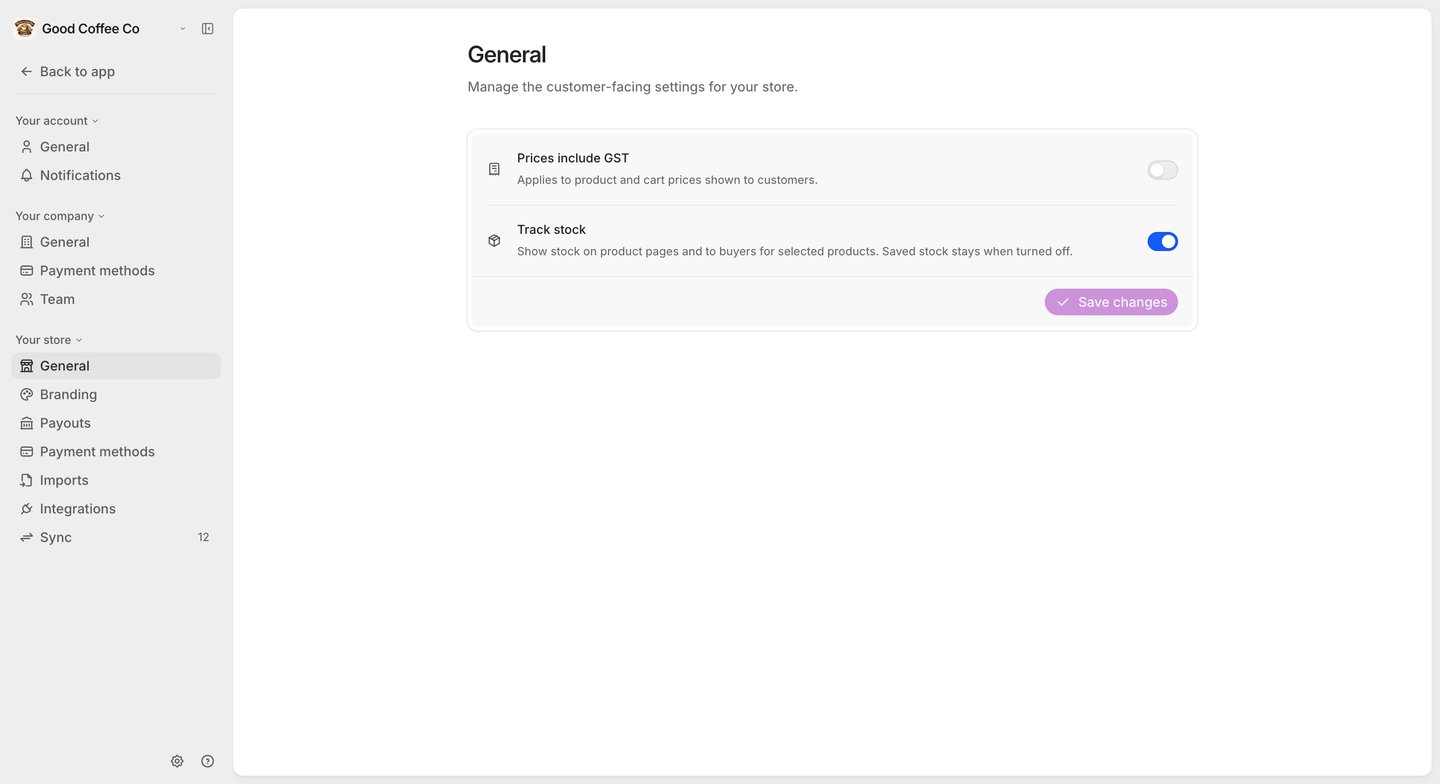
- Go to Settings → Store → General.
- Turn on Track stock, then select Save changes.
Record a product’s stock
Open a product and select Edit: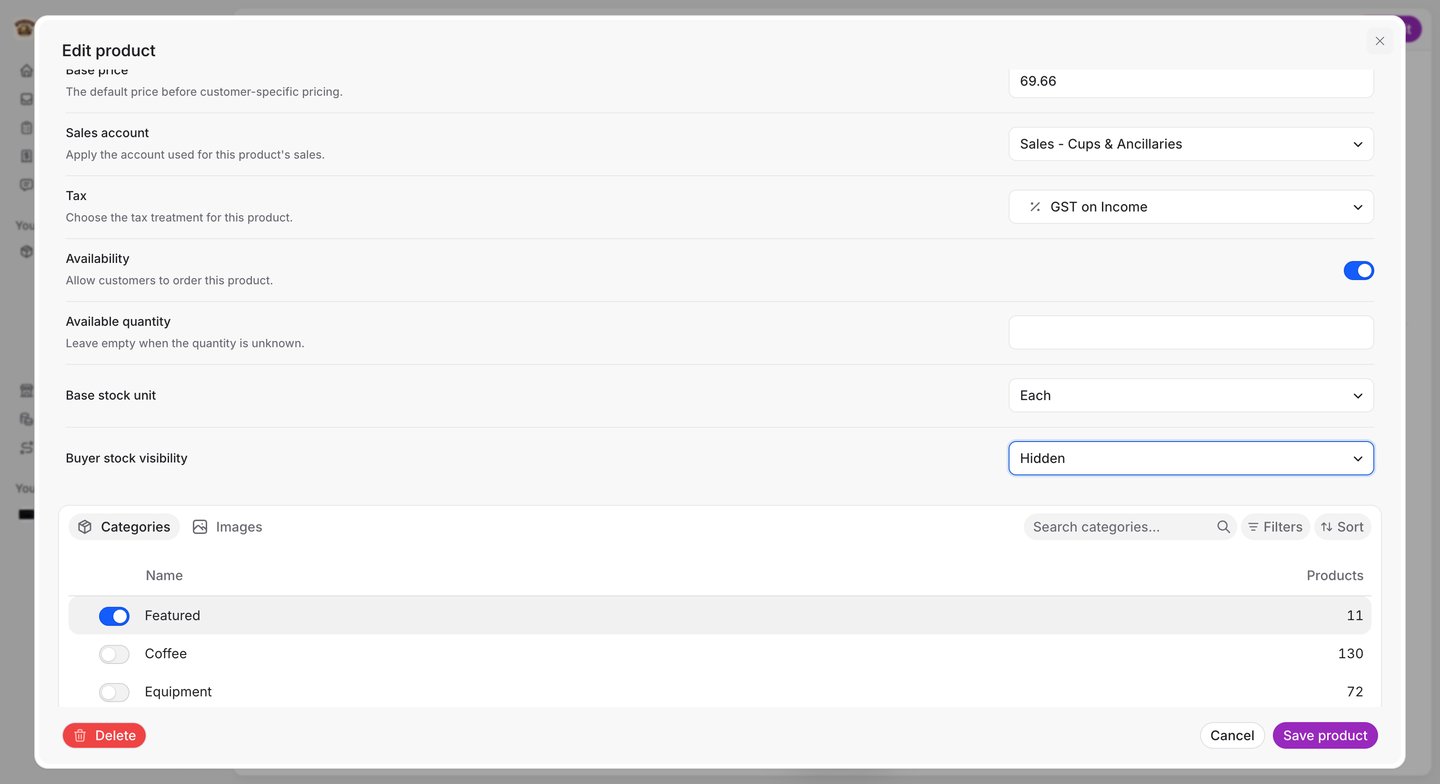
To change visibility for many products at once, tick them in your catalogue and use Set stock visibility.
What customers see
A customer sees a small label such as 12 available on the product card and product page — but only when all of these are true:- Track stock is on.
- The product’s Buyer stock visibility is Reported quantity.
- The product has a known, whole, zero-or-more quantity.
Stock from a connected system
If a product’s stock comes from a connected inventory system, FikaTrade compares that system’s figure with its own on the Sync screen:- A change made only in the connected system can update FikaTrade automatically.
- If the two genuinely disagree, the Sync screen raises it for you to decide. Until you do, customers keep seeing FikaTrade’s current figure.
- Some sources are read-only. For a product linked to one of those, you can’t edit the quantity in FikaTrade — FikaTrade tells you to update it in the connected system and sync instead.