

New 2026-10-17: email and browser notifications are new since this guide was last updated. Previously, everything was in-app only.
Before you begin
Anyone can change their own notification settings. Your choices only affect you, and only in the workspace you’re in — if you belong to more than one company, set each one separately.Choose what you’re told about
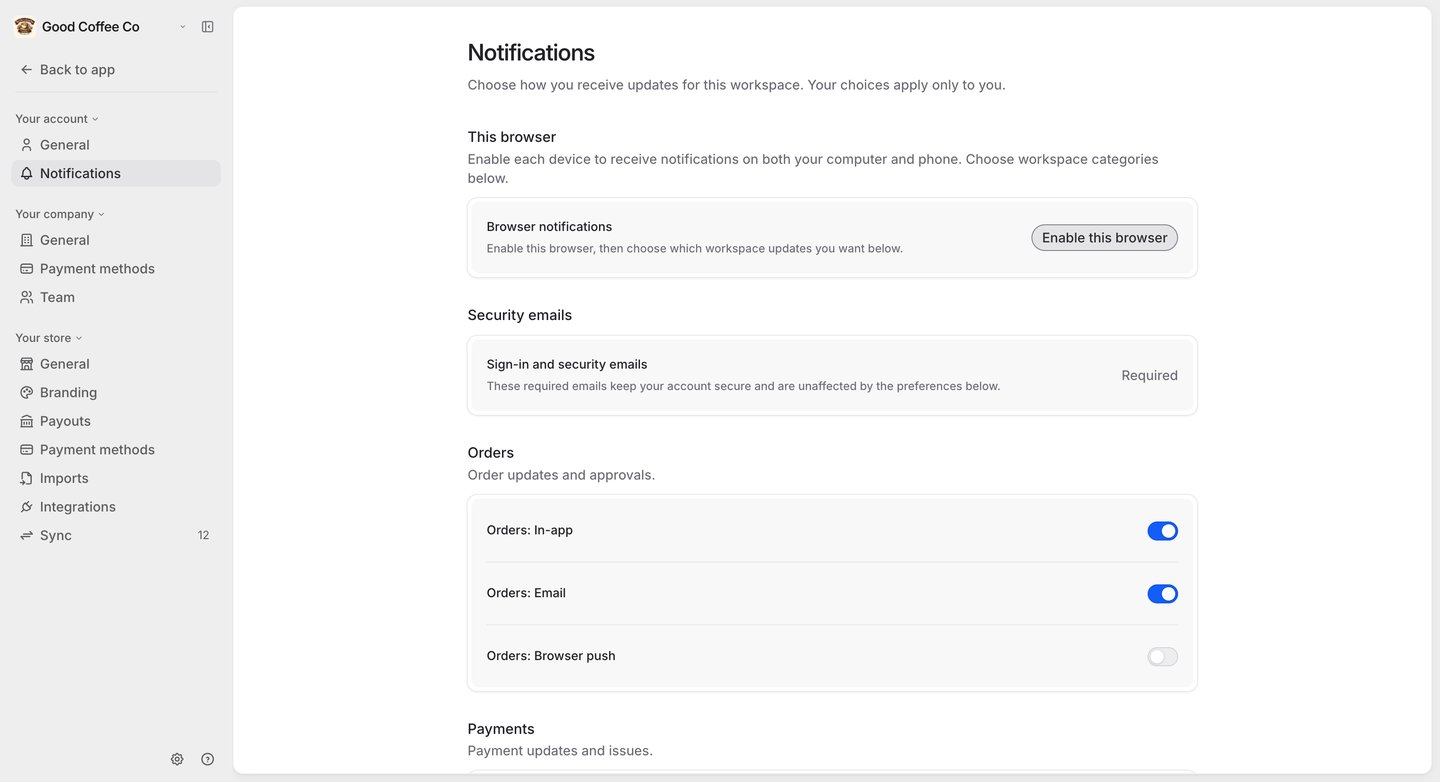
Go to Settings → Your account → Notifications. Updates are grouped into categories, and each has its own In-app, Email and Browser push switch:
Each switch saves as soon as you change it. In-app and Email start on; Browser push starts off.
Sign-in and security emails — such as password resets — are always sent and can’t be turned off.
Turn on browser notifications
Browser notifications pop up on your device even when FikaTrade isn’t open.- Under This browser, select Enable this browser, and allow notifications when your browser asks.
- Turn on Browser push for each category you want.
- Optionally, select Send a test notification to check it works.