

Images is your shared library of product photos. You upload an image once, then attach it to as many products as you like.
New 2026-10-17: the image library has been live since August 2026 but wasn’t documented until now.
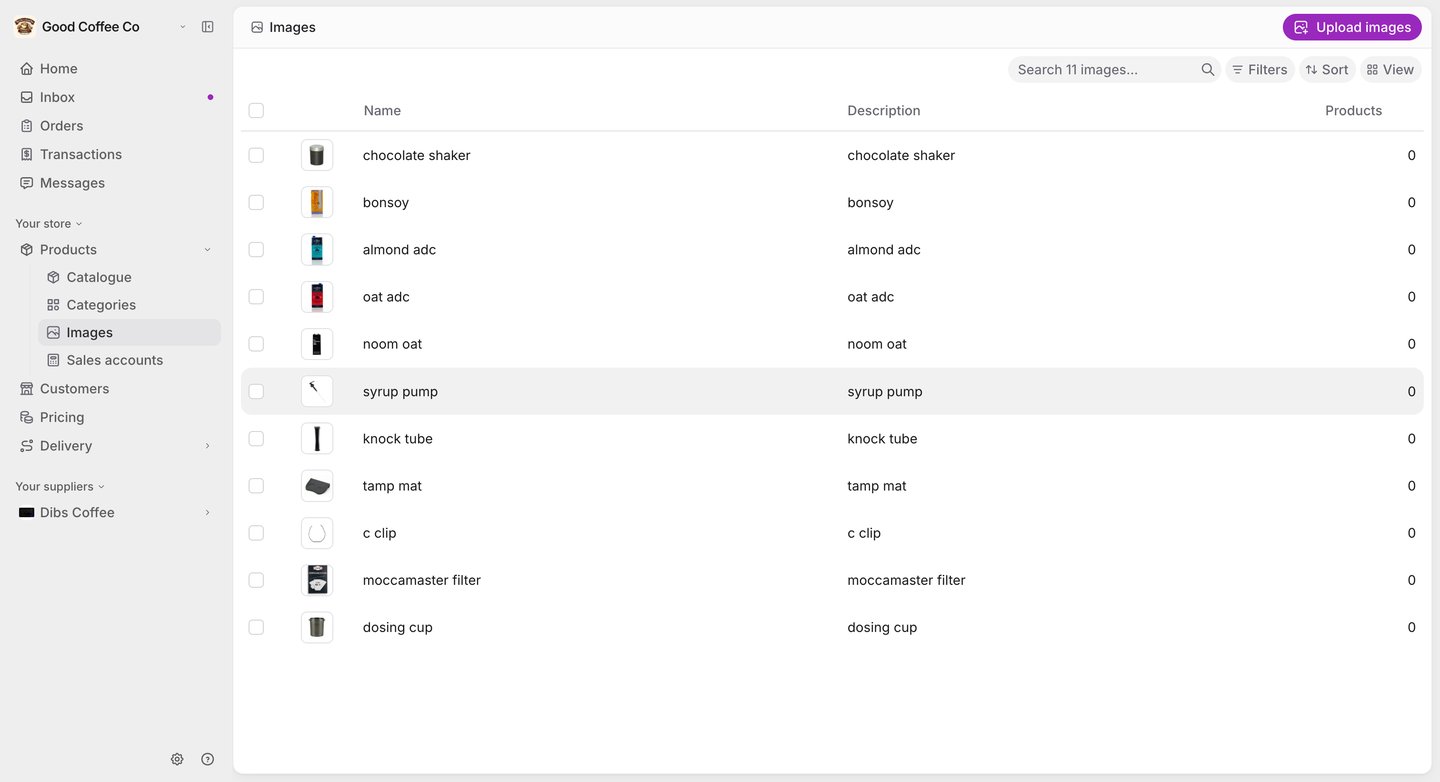
The Images library: a list of uploaded product images with thumbnails, names, descriptions and how many products use each, with an Upload images button at the top right.

Before you begin

Any member of your team can upload, edit and delete images. Bulk editing or deleting several images at once requires a supplier administrator.

Upload images

  1. Go to Products → Images.
  2. Select Upload images, or drag image files onto the page.
Images are processed in the background — a new upload shows as Uploading until it’s ready. You’ll get an Inbox notification when the upload finishes, or if it fails. A failed upload stays visible with the reason, so you can try again.

Attach an image to a product

You can attach an image from either side:
  • From the product — when you create or edit a product, use the image picker to choose from your library, or upload a new image there and then. It’s selected automatically once processing finishes. You can do the same for several products at once with the catalogue’s bulk image action.
  • From the image — open an image in the library, choose the products it belongs on, and select Save image. Your product choices aren’t saved until you do.

Edit or delete an image

Open an image to change its name or Description. The description is used as the image’s alternative text — what screen readers read out, and what shows if the image can’t load. Deleting an image removes it from every product it’s attached to, then deletes it from the library. Removing an image from a single product leaves it in the library for other products.