

New 2026-10-17: Messages has been live in the product since September 2026 but wasn’t documented until now.
Open Messages
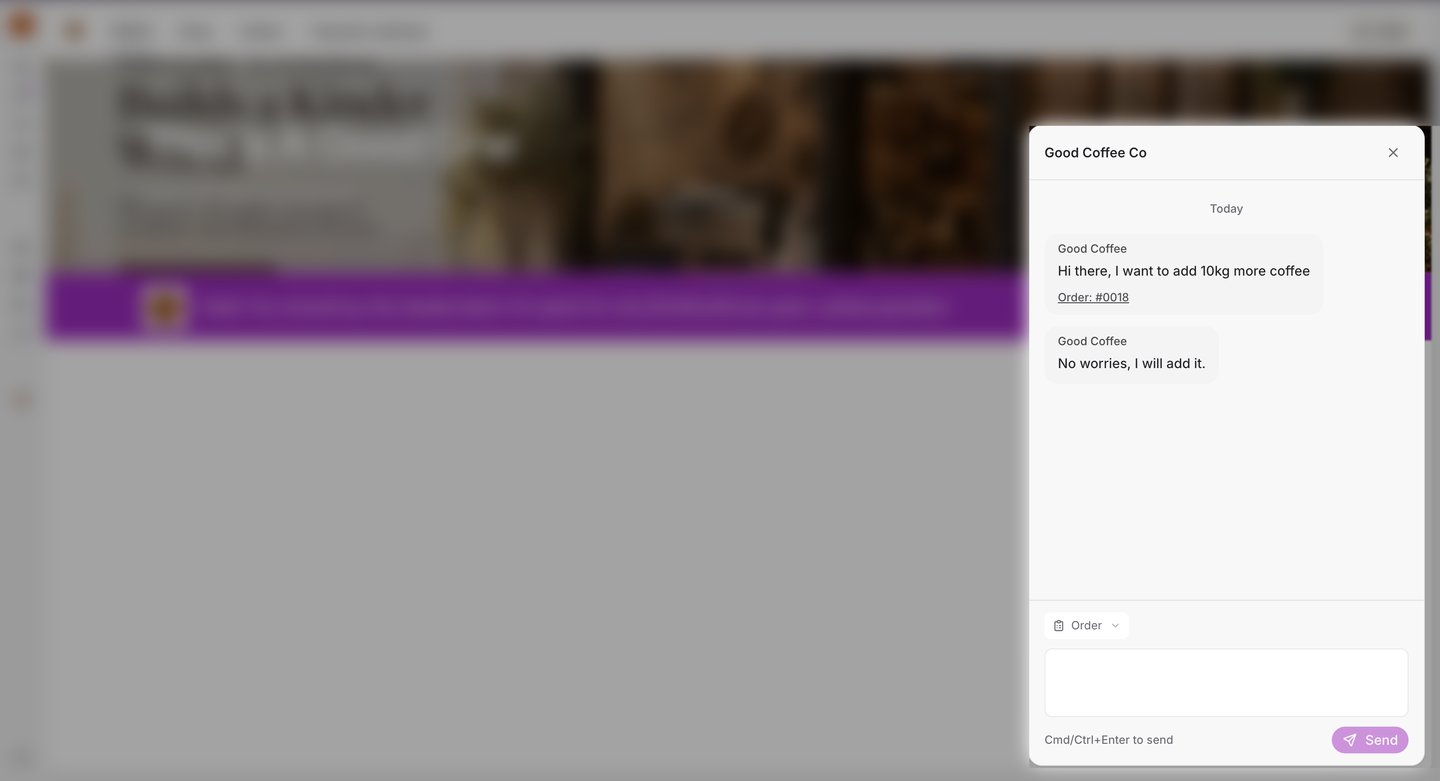
Select the round Messages button in the bottom-right corner of any storefront page. If you have unread messages from that supplier, the button shows how many. The first time, you’ll see No supplier messages yet. Select New conversation to start one. There’s one conversation with each supplier, shared by everyone at your business — a teammate can pick up where you left off.Send a message
- Type your message. Enter starts a new line.
- Optionally, select Order to attach one of your orders with this supplier, so they know exactly which one you mean.
- Select Send, or press Cmd+Enter (Mac) or Ctrl+Enter (Windows).