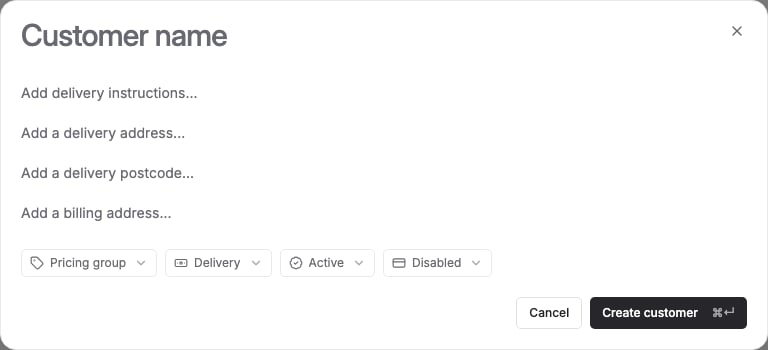

This page covers adding a single customer directly. FikaTrade also has a bulk import tool under Settings → Imports for adding customers (and other data) in bulk — that workflow isn’t covered here.

Before you begin

Any team member — Admin or Employee — can add a customer. Enabling payment collection for a customer while creating them requires a supplier administrator.

Steps

  1. Go to Customers and select New customer.
  2. Enter the customer’s name — this is the only required field.
  3. Optionally, enter:
    • Billing address
    • Delivery address
    • Delivery instructions
    • Postcode
    • Pricing group
    • Delivery fee
  4. Set Availability to Active or Inactive. New customers default to Active.
  5. If you’re a supplier administrator and your business has payments enabled, you can also turn on Payments for this customer.
  6. Save the customer.
There’s no duplicate-detection step — FikaTrade doesn’t check whether a customer with the same name or address already exists, so check your customer list first if you’re not sure.

What happens next

Saving creates the customer’s record in your workspace. No login access is created for anyone at this point — the customer can’t order through FikaTrade yet. To give people at this business the ability to order, invite them as customer users. See Manage customer contacts and access.