> ## Documentation Index
> Fetch the complete documentation index at: https://docs.fikatrade.com/llms.txt
> Use this file to discover all available pages before exploring further.
# Stock tracking
> How to record available stock on your products and choose whether customers see it. Stock is informational and never blocks an order.
Stock tracking lets you record how many of each product you have available, and optionally show that number to your customers.
**New 2026-10-17:** stock tracking has been live since late September 2026 but wasn't documented until now.
Stock is **informational only**. Orders don't reserve or reduce it, and a customer can still order more than the quantity you've recorded. To stop a product being ordered, mark it **Unavailable** instead — see [Product availability](/supplier-guide/products/product-availability).
## Before you begin
You need to be a **supplier administrator** to turn stock tracking on or change stock quantities.
## Turn on stock tracking
1. Go to **Settings → Store → General**.
2. Turn on **Track stock**, then select **Save changes**.
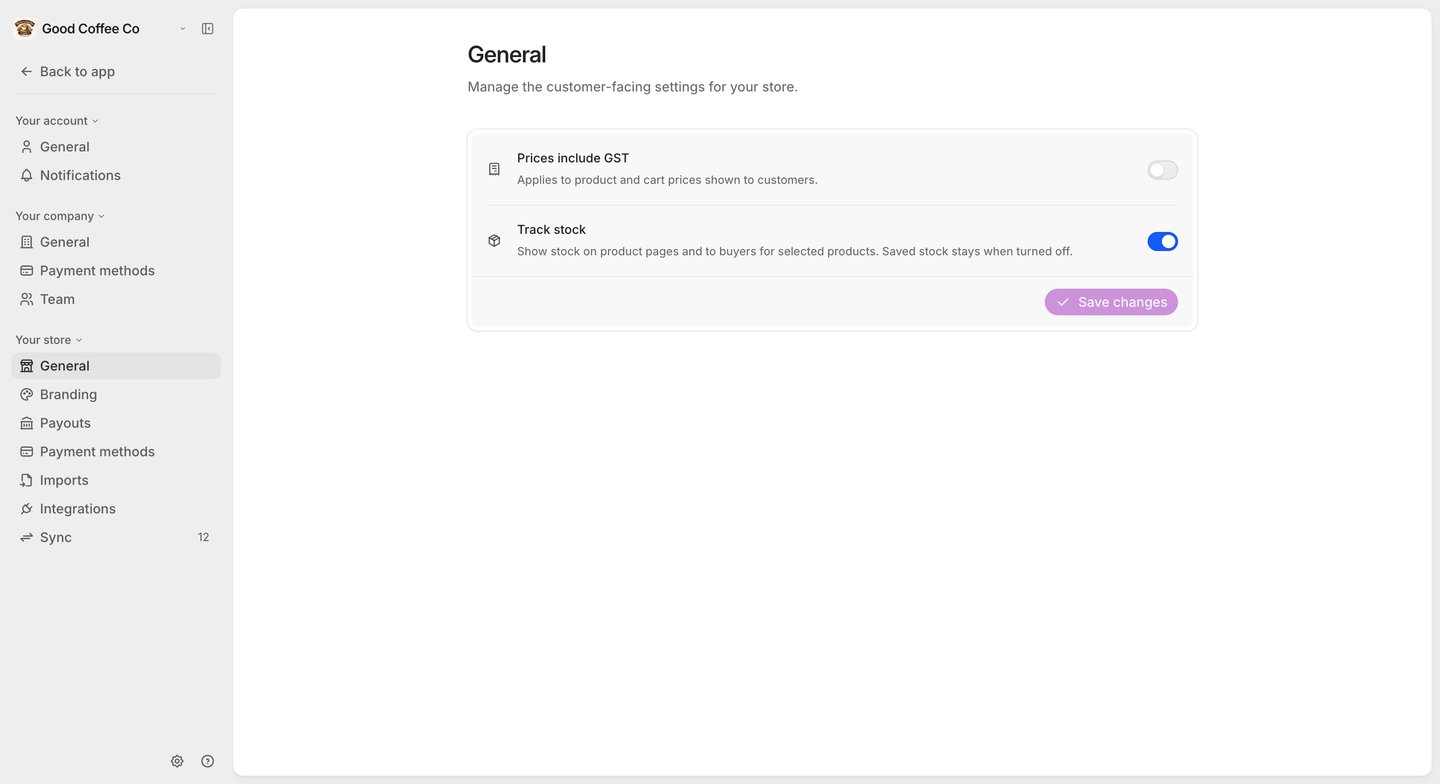 Turning it off later hides stock controls and stops showing stock to customers, but keeps the quantities you've saved.
## Record a product's stock
Open a product and select **Edit**:
Turning it off later hides stock controls and stops showing stock to customers, but keeps the quantities you've saved.
## Record a product's stock
Open a product and select **Edit**:
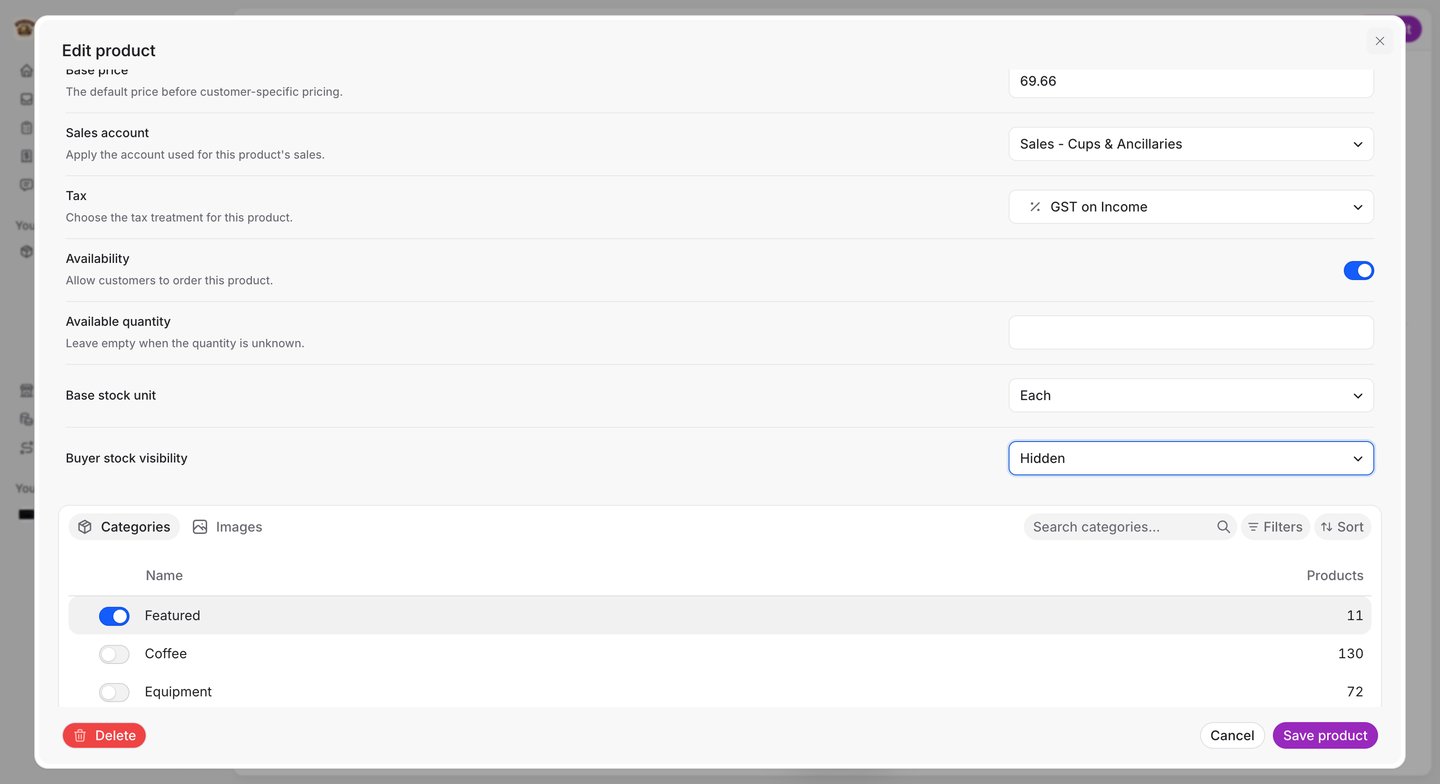 | Field | What it does |
| - | - |
| **Available quantity** | How many you have. Leave it empty if you don't know — an unknown quantity is different from zero. |
| **Base stock unit** | What the quantity counts. Currently only **Each** is available. |
| **Buyer stock visibility** | **Hidden** (the default) keeps the number to yourself. **Reported quantity** shows it to customers. |
To change visibility for many products at once, tick them in your catalogue and use **Set stock visibility**.
## What customers see
A customer sees a small label such as **12 available** on the product card and product page — but only when all of these are true:
* **Track stock** is on.
* The product's **Buyer stock visibility** is **Reported quantity**.
* The product has a known, whole, zero-or-more quantity.
Otherwise they see no stock information at all.
## Stock from a connected system
If a product's stock comes from a connected inventory system, FikaTrade compares that system's figure with its own on the **Sync** screen:
* A change made only in the connected system can update FikaTrade automatically.
* If the two genuinely disagree, the Sync screen raises it for you to decide. Until you do, customers keep seeing FikaTrade's current figure.
* Some sources are read-only. For a product linked to one of those, you can't edit the quantity in FikaTrade — FikaTrade tells you to update it in the connected system and sync instead.
See [The Sync screen](/supplier-guide/invoicing/sync-screen).
## Related guides
* [View and manage products](/supplier-guide/products/manage-products)
* [Product availability](/supplier-guide/products/product-availability)
* [Set up your company](/supplier-guide/getting-started/set-up-your-company)
* [The Sync screen](/supplier-guide/invoicing/sync-screen)
This documentation is built and hosted on [Mintlify](https://mintlify.com), a developer documentation platform.
| Field | What it does |
| - | - |
| **Available quantity** | How many you have. Leave it empty if you don't know — an unknown quantity is different from zero. |
| **Base stock unit** | What the quantity counts. Currently only **Each** is available. |
| **Buyer stock visibility** | **Hidden** (the default) keeps the number to yourself. **Reported quantity** shows it to customers. |
To change visibility for many products at once, tick them in your catalogue and use **Set stock visibility**.
## What customers see
A customer sees a small label such as **12 available** on the product card and product page — but only when all of these are true:
* **Track stock** is on.
* The product's **Buyer stock visibility** is **Reported quantity**.
* The product has a known, whole, zero-or-more quantity.
Otherwise they see no stock information at all.
## Stock from a connected system
If a product's stock comes from a connected inventory system, FikaTrade compares that system's figure with its own on the **Sync** screen:
* A change made only in the connected system can update FikaTrade automatically.
* If the two genuinely disagree, the Sync screen raises it for you to decide. Until you do, customers keep seeing FikaTrade's current figure.
* Some sources are read-only. For a product linked to one of those, you can't edit the quantity in FikaTrade — FikaTrade tells you to update it in the connected system and sync instead.
See [The Sync screen](/supplier-guide/invoicing/sync-screen).
## Related guides
* [View and manage products](/supplier-guide/products/manage-products)
* [Product availability](/supplier-guide/products/product-availability)
* [Set up your company](/supplier-guide/getting-started/set-up-your-company)
* [The Sync screen](/supplier-guide/invoicing/sync-screen)
This documentation is built and hosted on [Mintlify](https://mintlify.com), a developer documentation platform.