> ## Documentation Index
> Fetch the complete documentation index at: https://docs.fikatrade.com/llms.txt
> Use this file to discover all available pages before exploring further.
# Product variants
> How to group related products — such as one coffee in four bag sizes — into a single product with options your customers choose from.
A **product with variants** shows your customers several related products — for example *Alleyway Blend* in 250g, 500g, 1kg and 5kg bags — as one product, with options they choose from before adding it to their cart.
**New 2026-10-17:** variants have been live since September 2026. This replaces the earlier advice that FikaTrade had no way to group pack sizes.
## How variants work
Each variant is still **an ordinary product of its own**, with its own code, price, tax, availability, stock and images. The group only changes how those products are *presented* to customers:
* Customers see one card in your shop, priced **From** the lowest price they can buy.
* On the product page they choose a value for every option (for example **Size**). **Add to cart** only appears once their choices match a product they're allowed to buy.
* Orders, invoices and Xero all record the exact variant product that was bought, just as they would without the group.
A group only appears as one card when **at least two** of its variants are available to that customer. If only one is, that product shows as a normal product card. If none are, nothing shows. So [pricing groups](/supplier-guide/pricing/pricing-groups) still decide which variants each customer sees.
## Before you begin
Any member of your team can create and edit products with variants. Create the individual products first (or create new ones inside the group as you go — see below).
## Create a product with variants
1. Go to **Products → Catalogue** and tick the products you want to group.
2. Select **Create variants**.
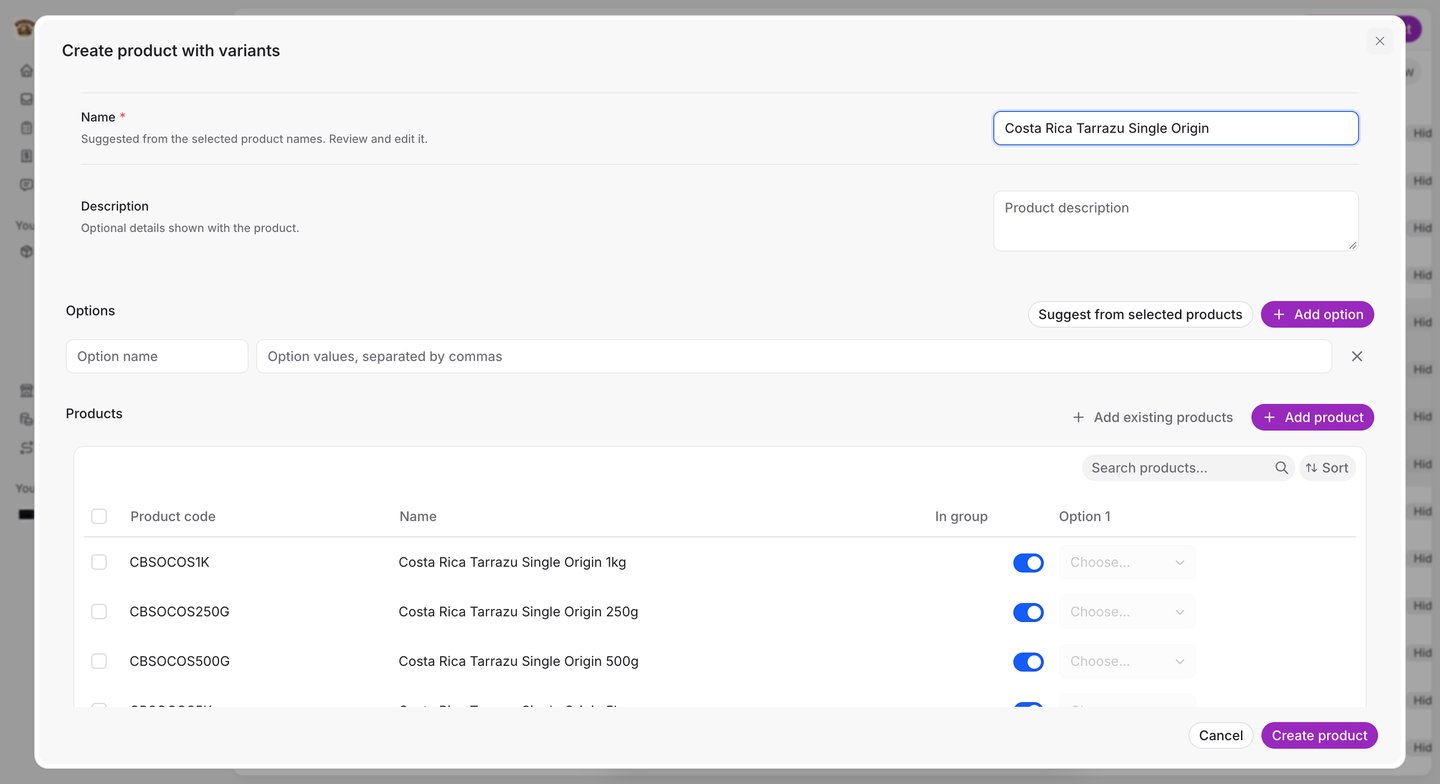
3. In **Create product with variants**, check the **Name** — FikaTrade suggests one from the names you ticked — and add an optional **Description**.
4. Under **Options**, enter an **Option name** (for example *Size*) and its values, separated by commas (for example *250g, 500g, 1kg, 5kg*). Select **Add option** for another dimension, such as *Grind* — up to ten options.
5. Under **Products**, choose a value for every option on each row. The **In group** switch controls whether each product is part of the group.
6. Select **Create product**. Nothing is saved until you do — if FikaTrade refuses the save, your draft stays open with the reason.
 ### Shortcuts
* **Suggest from selected products** — with three or more products selected, FikaTrade looks for the part of their codes that changes (for example `CBBLALY250G`, `CBBLALY500G`, `CBBLALY1K`) and suggests option values for each. You still name the option yourself, and you should check every suggestion before saving.
* **Assign option value** — tick several rows, select **Assign option value**, then choose an option and value to apply to all of them at once.
* **Add existing products** brings more of your catalogue into the group. **Add product** adds a row for a brand-new product — enter its code and name right there.
Two variants can't share the same combination of values.
## Manage a product with variants
Open the group from your catalogue (it's listed with a variant count) to see:
### Shortcuts
* **Suggest from selected products** — with three or more products selected, FikaTrade looks for the part of their codes that changes (for example `CBBLALY250G`, `CBBLALY500G`, `CBBLALY1K`) and suggests option values for each. You still name the option yourself, and you should check every suggestion before saving.
* **Assign option value** — tick several rows, select **Assign option value**, then choose an option and value to apply to all of them at once.
* **Add existing products** brings more of your catalogue into the group. **Add product** adds a row for a brand-new product — enter its code and name right there.
Two variants can't share the same combination of values.
## Manage a product with variants
Open the group from your catalogue (it's listed with a variant count) to see:
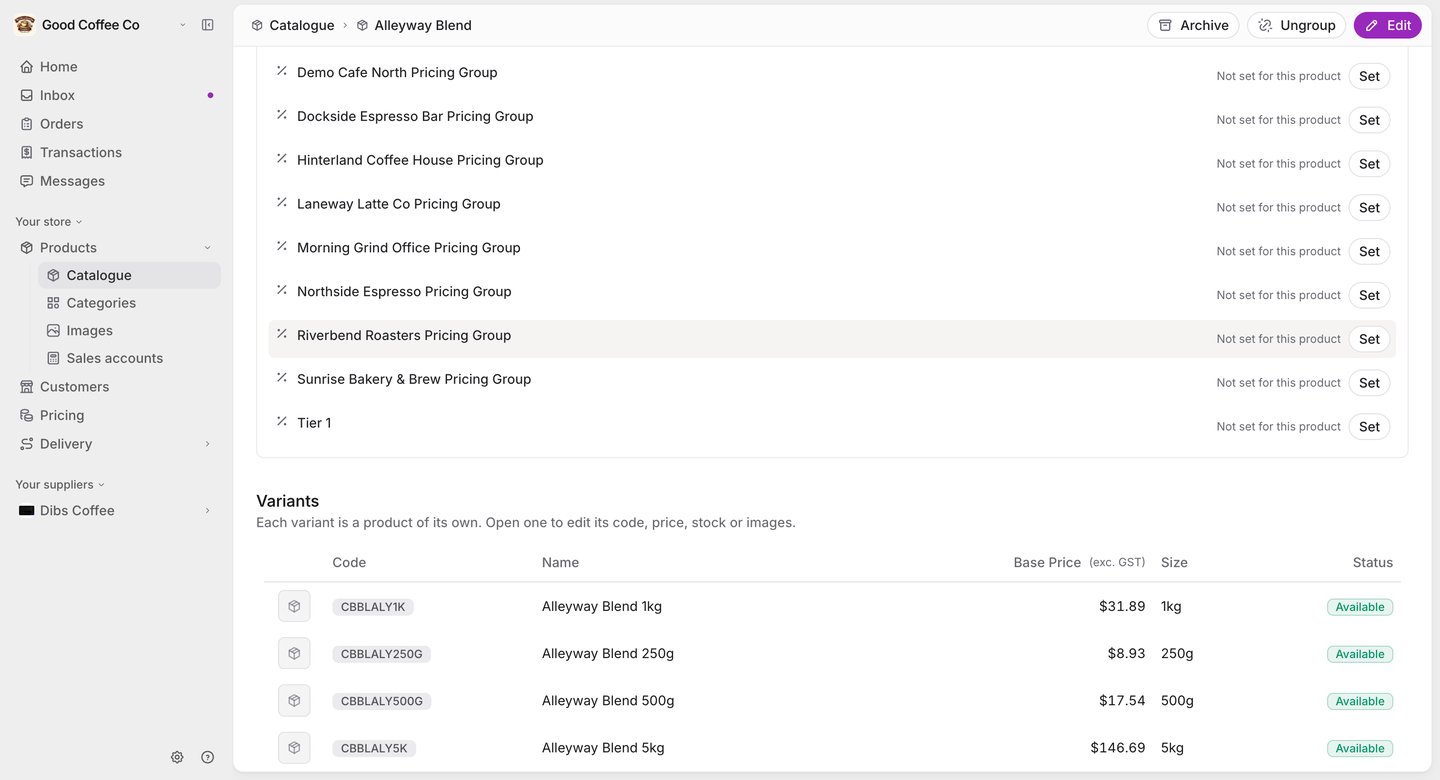 * **Pricing** — set a **List price** and a price for each pricing group once, for the whole group (see below).
* **Variants** — every product in the group. Open one to edit its own code, price, stock or images.
* **Edit** — change the name, options and variants.
* **Archive** — hides the group from your shop without losing its setup. You can restore it later.
* **Ungroup** — breaks the group apart. Every variant stays in your catalogue as a standalone product, unchanged. This doesn't delete anything.
## Pricing a group
Setting a price on the group copies it onto every variant, so you don't have to price each size separately:
* The first time you set a group price, it applies to every variant.
* After that, it only updates variants that are still **following** the group. If you change a variant's price directly — on the product itself, in a pricing group, or through an import or Xero sync — that variant becomes an **Override** and keeps its own price. Use the reset action on that row to make it follow the group again.
* Clearing a group price leaves every variant on the last price it was given.
* A variant added later picks up the group's current prices.
* [Customer price overrides](/supplier-guide/pricing/customer-price-overrides) aren't affected by group pricing, and still win over everything else.
## Categories
A group has its own storefront categories, separate from the categories on its individual products. While products are grouped, only the **group's** categories decide where it appears in your shop. A group with no category shows under Uncategorised. Editing one set never silently changes the other.
## Related guides
* [View and manage products](/supplier-guide/products/manage-products)
* [Product codes and tax settings](/supplier-guide/products/codes-and-tax-settings)
* [Manage categories](/supplier-guide/products/manage-categories)
* [Pricing groups](/supplier-guide/pricing/pricing-groups)
* [Browse products and prices](/customer-guide/ordering/browse-products-and-prices) (customer view)
This documentation is built and hosted on [Mintlify](https://mintlify.com), a developer documentation platform.
* **Pricing** — set a **List price** and a price for each pricing group once, for the whole group (see below).
* **Variants** — every product in the group. Open one to edit its own code, price, stock or images.
* **Edit** — change the name, options and variants.
* **Archive** — hides the group from your shop without losing its setup. You can restore it later.
* **Ungroup** — breaks the group apart. Every variant stays in your catalogue as a standalone product, unchanged. This doesn't delete anything.
## Pricing a group
Setting a price on the group copies it onto every variant, so you don't have to price each size separately:
* The first time you set a group price, it applies to every variant.
* After that, it only updates variants that are still **following** the group. If you change a variant's price directly — on the product itself, in a pricing group, or through an import or Xero sync — that variant becomes an **Override** and keeps its own price. Use the reset action on that row to make it follow the group again.
* Clearing a group price leaves every variant on the last price it was given.
* A variant added later picks up the group's current prices.
* [Customer price overrides](/supplier-guide/pricing/customer-price-overrides) aren't affected by group pricing, and still win over everything else.
## Categories
A group has its own storefront categories, separate from the categories on its individual products. While products are grouped, only the **group's** categories decide where it appears in your shop. A group with no category shows under Uncategorised. Editing one set never silently changes the other.
## Related guides
* [View and manage products](/supplier-guide/products/manage-products)
* [Product codes and tax settings](/supplier-guide/products/codes-and-tax-settings)
* [Manage categories](/supplier-guide/products/manage-categories)
* [Pricing groups](/supplier-guide/pricing/pricing-groups)
* [Browse products and prices](/customer-guide/ordering/browse-products-and-prices) (customer view)
This documentation is built and hosted on [Mintlify](https://mintlify.com), a developer documentation platform.