> ## Documentation Index
> Fetch the complete documentation index at: https://docs.fikatrade.com/llms.txt
> Use this file to discover all available pages before exploring further.
# Notification settings
> How to choose which updates you get in-app, by email and as browser notifications.
Each person on your team chooses how they hear about updates in your workspace — in the app, by email, or as browser notifications on their computer or phone.
**New 2026-10-17:** email and browser notifications are new since this guide was last updated. Previously, everything was in-app only.
 ## Before you begin
Anyone can change their own notification settings. Your choices only affect you, and only in the workspace you're in — if you belong to more than one company, set each one separately.
## Choose what you're told about
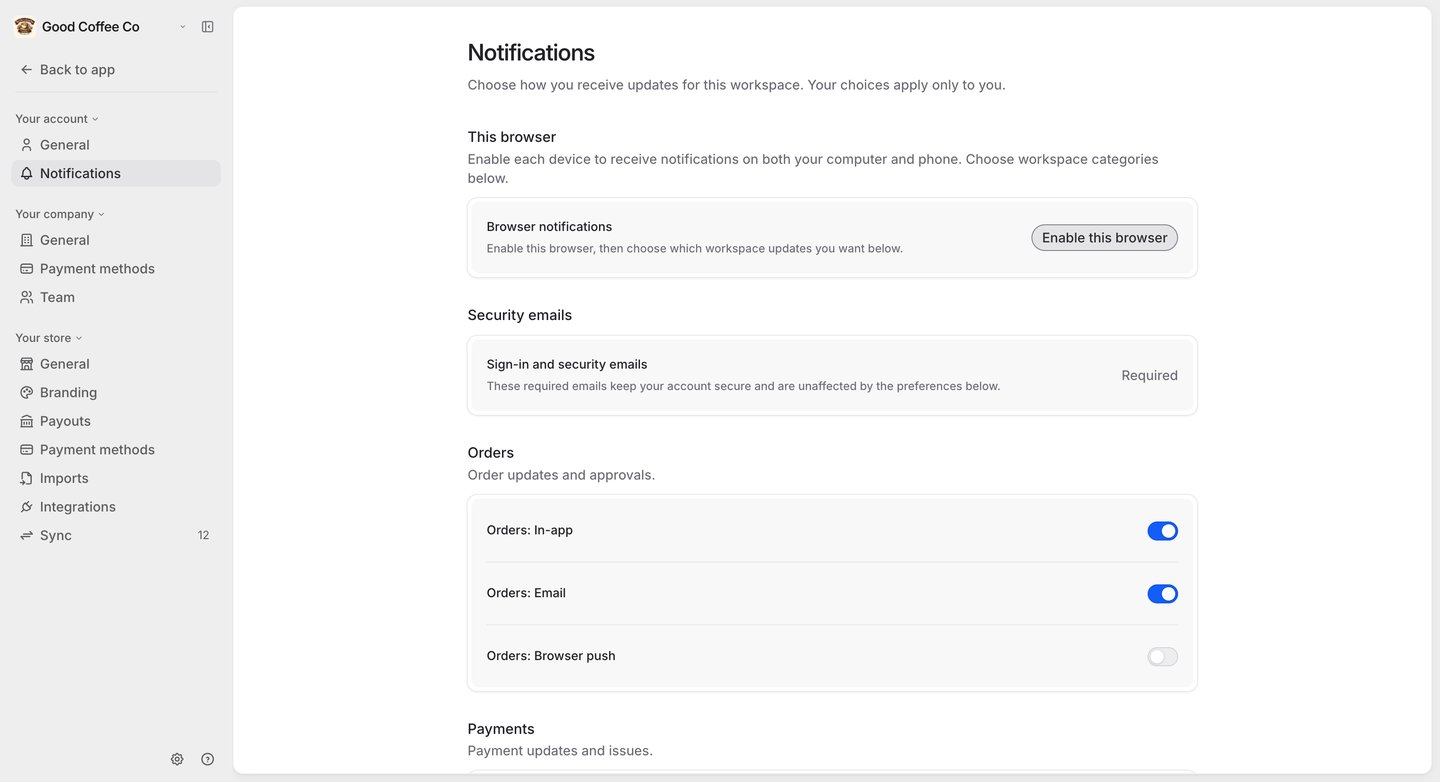
Go to **Settings → Your account → Notifications**. Updates are grouped into categories, and each has its own **In-app**, **Email** and **Browser push** switch:
| Category | Covers |
| - | - |
| **Orders** | Order updates and approvals — for example a new order being placed. |
| **Payments** | Payment updates and issues, such as a collection failing. |
| **Account updates** | Optional account activity. |
| **Operations** | Imports and other workspace activity. |
Each switch saves as soon as you change it. **In-app** and **Email** start on; **Browser push** starts off.
**Sign-in and security emails** — such as password resets — are always sent and can't be turned off.
## Turn on browser notifications
Browser notifications pop up on your device even when FikaTrade isn't open.
1. Under **This browser**, select **Enable this browser**, and allow notifications when your browser asks.
2. Turn on **Browser push** for each category you want.
3. Optionally, select **Send a test notification** to check it works.
Enable each device separately — your work computer and your phone are enabled independently, and each gets its own copy of every notification. To stop one device, select **Disable for this workspace** on that device; your other devices keep receiving them.
On iPhone and iPad, browser notifications only work after you add FikaTrade to your Home Screen and open it from there.
If your browser has blocked notifications, change FikaTrade's notification permission in your browser's site settings. If you see **Reconnect this browser**, select it — your category choices are kept.
## Related guides
* [Activity and notifications](/supplier-guide/getting-started/activity-and-notifications)
* [Invite and manage team members](/supplier-guide/getting-started/invite-and-manage-team-members)
This documentation is built and hosted on [Mintlify](https://mintlify.com), a developer documentation platform.
## Before you begin
Anyone can change their own notification settings. Your choices only affect you, and only in the workspace you're in — if you belong to more than one company, set each one separately.
## Choose what you're told about
Go to **Settings → Your account → Notifications**. Updates are grouped into categories, and each has its own **In-app**, **Email** and **Browser push** switch:
| Category | Covers |
| - | - |
| **Orders** | Order updates and approvals — for example a new order being placed. |
| **Payments** | Payment updates and issues, such as a collection failing. |
| **Account updates** | Optional account activity. |
| **Operations** | Imports and other workspace activity. |
Each switch saves as soon as you change it. **In-app** and **Email** start on; **Browser push** starts off.
**Sign-in and security emails** — such as password resets — are always sent and can't be turned off.
## Turn on browser notifications
Browser notifications pop up on your device even when FikaTrade isn't open.
1. Under **This browser**, select **Enable this browser**, and allow notifications when your browser asks.
2. Turn on **Browser push** for each category you want.
3. Optionally, select **Send a test notification** to check it works.
Enable each device separately — your work computer and your phone are enabled independently, and each gets its own copy of every notification. To stop one device, select **Disable for this workspace** on that device; your other devices keep receiving them.
On iPhone and iPad, browser notifications only work after you add FikaTrade to your Home Screen and open it from there.
If your browser has blocked notifications, change FikaTrade's notification permission in your browser's site settings. If you see **Reconnect this browser**, select it — your category choices are kept.
## Related guides
* [Activity and notifications](/supplier-guide/getting-started/activity-and-notifications)
* [Invite and manage team members](/supplier-guide/getting-started/invite-and-manage-team-members)
This documentation is built and hosted on [Mintlify](https://mintlify.com), a developer documentation platform.