> ## Documentation Index
> Fetch the complete documentation index at: https://docs.fikatrade.com/llms.txt
> Use this file to discover all available pages before exploring further.
# Message your customers
> How Messages works — one conversation per customer, starting a chat from a customer or an order, and attaching an order to a message.
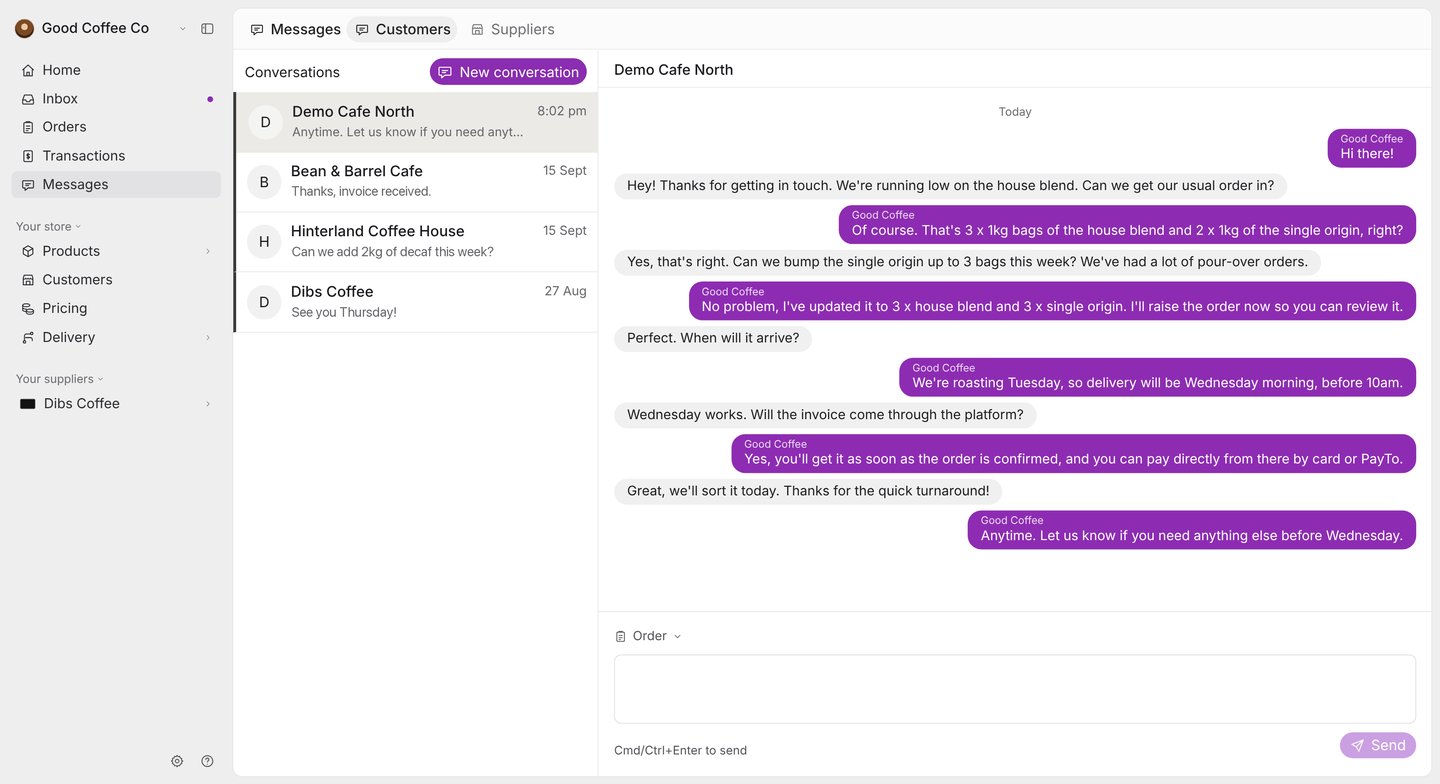
**Messages** is a plain-text chat between your business and each of your customers, built into FikaTrade so conversations about orders stay next to the orders themselves.
**New 2026-10-17:** Messages has been live in the product since September 2026 but wasn't documented until now.
 ## How conversations work
* There's **one conversation per customer**. Every message you or your teammates send to that customer goes into the same thread, and anyone on your team can read and reply.
* Your customer sees the same conversation from their storefront — see [Message your supplier](/customer-guide/ordering/messages).
* Messages are plain text. You can't attach files or images.
* A message can carry **one order** for context, shown as **Order: #1234** under the message.
## Before you begin
Any member of your team can use Messages. You can only message active customers who are on FikaTrade themselves. A customer that exists only as a record in your workspace, with nobody signed in to order for them, doesn't appear in the customer picker.
## Start a conversation
You can start a conversation from three places:
1. **Messages** in the sidebar → **New conversation**, then choose the customer.
2. A customer's page → **Message customer**.
3. An order's page → the **Message** button in the toolbar. This opens that customer's conversation with the order already attached to your draft.
If a conversation with that customer already exists, all three open it rather than starting a new one.
## Send a message
1. Type your message in the box at the bottom of the conversation. **Enter** starts a new line.
2. Optionally, select **Order** to attach one of that customer's orders. The picker shows their 10 most recent orders, and you can search for any other. Select **Remove order** to take it off again.
3. Select **Send**, or press **Cmd+Enter** (Mac) or **Ctrl+Enter** (Windows).
Your message only appears in the thread once FikaTrade has saved it. If sending fails, your draft stays in the box and a **Retry sending** button appears — retrying never sends the same message twice.
## Unread messages
Conversations with unread messages show in heavier text with a dot beside the customer's name, and **Messages** in the sidebar shows an unread count. A conversation is marked as read once you've scrolled to the newest message with the page open in front of you. Scrolling back through older messages, or leaving the tab in the background, doesn't mark it read.
## If your business also buys from suppliers
If your company also orders from other suppliers through FikaTrade, Messages has two tabs: **Customers** and **Suppliers**. Use **Suppliers** to message the businesses you buy from.
## Related guides
* [Customers overview](/supplier-guide/customers/overview)
* [Review an order](/supplier-guide/orders/review-an-order)
* [Activity and notifications](/supplier-guide/getting-started/activity-and-notifications)
* [Message your supplier](/customer-guide/ordering/messages) (customer view)
This documentation is built and hosted on [Mintlify](https://mintlify.com), a developer documentation platform.
## How conversations work
* There's **one conversation per customer**. Every message you or your teammates send to that customer goes into the same thread, and anyone on your team can read and reply.
* Your customer sees the same conversation from their storefront — see [Message your supplier](/customer-guide/ordering/messages).
* Messages are plain text. You can't attach files or images.
* A message can carry **one order** for context, shown as **Order: #1234** under the message.
## Before you begin
Any member of your team can use Messages. You can only message active customers who are on FikaTrade themselves. A customer that exists only as a record in your workspace, with nobody signed in to order for them, doesn't appear in the customer picker.
## Start a conversation
You can start a conversation from three places:
1. **Messages** in the sidebar → **New conversation**, then choose the customer.
2. A customer's page → **Message customer**.
3. An order's page → the **Message** button in the toolbar. This opens that customer's conversation with the order already attached to your draft.
If a conversation with that customer already exists, all three open it rather than starting a new one.
## Send a message
1. Type your message in the box at the bottom of the conversation. **Enter** starts a new line.
2. Optionally, select **Order** to attach one of that customer's orders. The picker shows their 10 most recent orders, and you can search for any other. Select **Remove order** to take it off again.
3. Select **Send**, or press **Cmd+Enter** (Mac) or **Ctrl+Enter** (Windows).
Your message only appears in the thread once FikaTrade has saved it. If sending fails, your draft stays in the box and a **Retry sending** button appears — retrying never sends the same message twice.
## Unread messages
Conversations with unread messages show in heavier text with a dot beside the customer's name, and **Messages** in the sidebar shows an unread count. A conversation is marked as read once you've scrolled to the newest message with the page open in front of you. Scrolling back through older messages, or leaving the tab in the background, doesn't mark it read.
## If your business also buys from suppliers
If your company also orders from other suppliers through FikaTrade, Messages has two tabs: **Customers** and **Suppliers**. Use **Suppliers** to message the businesses you buy from.
## Related guides
* [Customers overview](/supplier-guide/customers/overview)
* [Review an order](/supplier-guide/orders/review-an-order)
* [Activity and notifications](/supplier-guide/getting-started/activity-and-notifications)
* [Message your supplier](/customer-guide/ordering/messages) (customer view)
This documentation is built and hosted on [Mintlify](https://mintlify.com), a developer documentation platform.