> ## Documentation Index
> Fetch the complete documentation index at: https://docs.fikatrade.com/llms.txt
> Use this file to discover all available pages before exploring further.
# Message your supplier
> How to chat with your supplier from their storefront, and attach an order to a message.
You can send your supplier a message from anywhere in their storefront — useful for questions about an order, a product, or a delivery.
**New 2026-10-17:** Messages has been live in the product since September 2026 but wasn't documented until now.
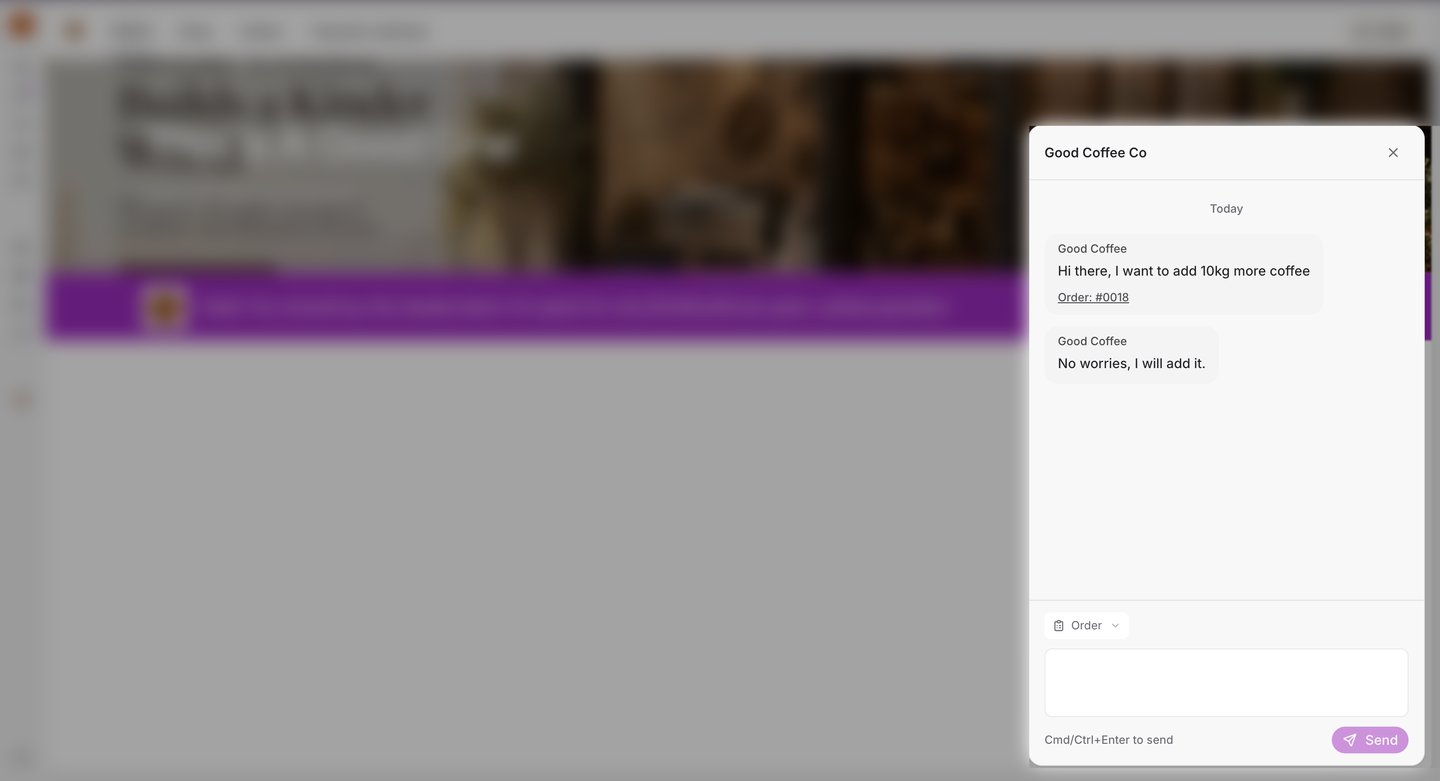 ## Open Messages
Select the round **Messages** button in the bottom-right corner of any storefront page. If you have unread messages from that supplier, the button shows how many.
The first time, you'll see **No supplier messages yet.** Select **New conversation** to start one.
There's one conversation with each supplier, shared by everyone at your business — a teammate can pick up where you left off.
## Send a message
1. Type your message. **Enter** starts a new line.
2. Optionally, select **Order** to attach one of your orders with this supplier, so they know exactly which one you mean.
3. Select **Send**, or press **Cmd+Enter** (Mac) or **Ctrl+Enter** (Windows).
If a message doesn't send, it stays in the box with a **Retry sending** button — retrying never sends it twice.
Messages are plain text; you can't attach files or images.
## See all your conversations
If you buy from more than one supplier, **Messages** in your main sidebar lists every supplier conversation in one place.
## Related guides
* [View orders and statuses](/customer-guide/ordering/view-orders-and-statuses)
* [Activity and notifications](/customer-guide/getting-started/activity-and-notifications)
* [Review and place an order](/customer-guide/ordering/review-and-place-an-order)
This documentation is built and hosted on [Mintlify](https://mintlify.com), a developer documentation platform.
## Open Messages
Select the round **Messages** button in the bottom-right corner of any storefront page. If you have unread messages from that supplier, the button shows how many.
The first time, you'll see **No supplier messages yet.** Select **New conversation** to start one.
There's one conversation with each supplier, shared by everyone at your business — a teammate can pick up where you left off.
## Send a message
1. Type your message. **Enter** starts a new line.
2. Optionally, select **Order** to attach one of your orders with this supplier, so they know exactly which one you mean.
3. Select **Send**, or press **Cmd+Enter** (Mac) or **Ctrl+Enter** (Windows).
If a message doesn't send, it stays in the box with a **Retry sending** button — retrying never sends it twice.
Messages are plain text; you can't attach files or images.
## See all your conversations
If you buy from more than one supplier, **Messages** in your main sidebar lists every supplier conversation in one place.
## Related guides
* [View orders and statuses](/customer-guide/ordering/view-orders-and-statuses)
* [Activity and notifications](/customer-guide/getting-started/activity-and-notifications)
* [Review and place an order](/customer-guide/ordering/review-and-place-an-order)
This documentation is built and hosted on [Mintlify](https://mintlify.com), a developer documentation platform.